-
Ensure your company has confirmed the PO – change orders also require an order confirmation – and that the Grace end-user has posted a goods receipt on the order. Grace requires both actions to be completed in Ariba before an invoice can be submitted.
Process flow for sender (Grace) and recipient (supplier). The ASN is optional, but requested.

-
The Grace end-user has not yet posted the quantity of goods receipt needed on the purchase order to invoice.
-
Even if no tax is being charged, enter “0” in the Rate % field.

-
If the invoice number has previously been used and rejected or credit submitted, a “1” or “A” must be entered after the invoice to create a new, unique number.
-
Refer to Invoice with Freight for instructions.
-
Click the link for details on how to Create Line-Item Credit Memo.
-
1. Log into your Ariba account.
2. Click on button with your initials in the upper righthand corner for dropdown menu.
3. Select Settings, then choose Electronic Invoice Routing.
4. Check notification box and enter e-mail address(es) separated by a comma.

-
The invoice is being entered in an incorrect manner. Do not use the Create dropdown menu on your Ariba homepage. If you have either a Standard or Enterprise Account, you can “Create Invoice” directly through the Ariba portal. Remember that the order must be confirmed and goods receipt posted first before you can invoice.
-
You selected an Enterprise Account, which may be subject to fees, when you signed up on Ariba. For more details about accounts and fees, visit SAP Ariba Subscriptions and Pricing. Please note the terms of agreement for usage of the Ariba Network are between the supplier and SAP Ariba, which Grace is not involved in.
-
1. Go to Workbench > Invoices and click on the link of the invoice you’re searching. Once the invoice has been approved for payment, you will see it in the Remittance tab of the submitted invoice.
2. Another option to view can be found under Payments > Remittances.
3. You can also set up a remittance notification to receive an e-mail with this information. See Setting Up Notifications section of Ariba Training video (under Training Sessions on grace.com/ariba).


-
Click on the button disc with initials in the upper righthand corner of your Ariba account. Select Settings > Notifications from the dropdown menu and click on the Messaging tab. Check box “Send notifications when customer messages are received” and enter e-mail address in the corresponding field. Multiple e-mails should be separated by a comma, with no space. Click Save when finished.

-
Click on the button disc with initials in the upper righthand corner of your Ariba account. Select Settings > Electronic Invoice Routing from the dropdown menu. Under Notifications, Invoice Failure, check box “Send a notification when invoices are undeliverable or rejected” and enter e-mail address in the corresponding field. Multiple e-mails should be separated by a comma, with no space. Click Save when finished.


-
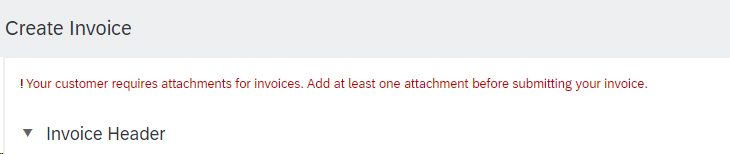
A PDF copy of your invoice is required for validation purposes (maximum size 100MB). For Germany, Sweden, and the United States, a PDF attachment is optional since e-invoicing has been implemented in those countries and the electronic invoice submitted will be used instead.
-
Invoice submission depends on how you receive your Purchase Orders (POs) and whether your country is subject to e-invoicing mandates:
For Non-PO Invoices or POs Beginning with 450
All invoices that are not associated with a Purchase Order (PO) or are associated with a PO beginning with 450 must be submitted exclusively to AccountsPayable.GOC@grace.com.
PDF Requirements
PDF Version 1.3 to 2.0 only.
Encrypted PDFs, XFA documents, and PDF portfolios are not supported.
All document images must be at least 1,000 x 1,000 pixels and must not exceed 10,000 x 10,000 pixels.
Recommended resolution is 300 DPI. For Chinese-language documents, a minimum resolution of 400 DPI is recommended.
Supported color modes: Color, Grayscale, and Bitonal.
Invoice Submission Guidelines
Multiple invoices may be submitted in a single email; however, each PDF file must contain only one invoice and must not include blank pages.
Any supporting documentation related to an invoice must be combined with the invoice into a single PDF file.
Handwritten invoices will not be accepted.
Please include the Grace Purchase Order number and Bill-to/Ship-to address on the invoice. If no PO is available, please indicate the name of your Grace contact.
Future-dated invoices are not accepted.
A separate invoice must be issued for each Purchase Order. Invoices covering multiple Purchase Orders cannot be processed.
For Ariba Purchase Orders (650 or 750 Series)
Invoices associated with Purchase Orders beginning with 650 or 750 and issued through SAP Ariba must be submitted via the Ariba Network.
The Ariba Network link can be accessed through the Purchase Order notification email. For guidance on invoice submission, please refer to the training videos available on the SAP Ariba® Video Library.
E-Invoicing: As part of our ongoing efforts to align with global regulatory requirements and improve invoicing efficiency, we are implementing electronic invoicing (e-invoicing) across multiple countries.
Follow country-specific formats/channels
Non-compliant invoices may be rejected
Country Go-Live Date Accepted Format Submission Channel Malaysia (MY) January 13, 2025 No change to existing process Email / Ariba Belgium (BE) January 5, 2026 E-invoice – Authorized Government Format Peppol Poland (PL) February 23, 2026 E-invoice – Authorized Government Format KSeF Oman (OM) TBD E-invoice – Authorized Government Format Oman Tax Authority / Peppol Germany (DE) January 1, 2027 E-invoice (ZUGFeRD / XRechnung) Email / Peppol United Arab Emirates (UAE) July 1, 2027 In Planning In Planning France TBD TBD TBD Note:
- Payment Term starts upon valid invoice receipt
- Ensure accuracy and correct submission channels to avoid delays.